Access Control
Access control lets a dealer or series organiser put ECUs into a group, such as a controlled race series. When anyone else opens one of those ECUs, Emtune only shows the menu the group allows. For example, competitors could be allowed to adjust launch control and traction control but nothing else. The group can also hide live data channels.
The group’s owner, and any admins and tuners they add, keep full access to every ECU in the group.
Warning
By creating an Access Control group, you are agreeing to maintain it.
- Only the group owner or administrators can add or remove an ECU from Access Control.
- Your contact details will be available to anyone with an ECU in your control group.
How it works
- The owner builds a menu in Emtune and exports it for access control.
- On EmNet, the owner creates a group, uploads the menu and a user manual, and adds the ECU serial numbers.
- When Emtune detects one of those ECUs, it checks EmNet and shows the group on the welcome screen.
- When the ECU is opened, everyone except the owner, admins and tuners only gets the group’s menu.
- Emtune saves the group in the ECU and in any calibration saved from it, so the lock stays in place without an internet connection.
Roles
| Role | In Emtune | On EmNet |
|---|---|---|
| Owner | Full access | Everything, including deleting the group |
| Admin | Full access | Edit the group, its files, serial numbers and people. Can’t delete the group. |
| Tuner | Full access | Upload and remove the group’s files |
| Everyone else | Only the group’s menu | Nothing |
Full access comes from the EmNet account that Emtune is registered to on that PC. A group’s owner, admin or tuner only gets full access on PCs registered to their own account. On any other PC they get the same restricted menu as everyone else.
What you need
- An EmNet account with the dealer role to create a group. Contact Emtron to have the role added. Admins and tuners don’t need it.
- A version of Emtune that supports access control, on every PC that will connect to the ECUs.
- An internet connection the first time each PC connects to an ECU in the group.
- The ECUs must be owned by you, or by the group’s owner, on EmNet. See step 1 below.
Setting up a group
These steps are for the dealer or organiser who will own the group.
1. Claim your ECUs
An ECU can only be added to a group once it’s owned on EmNet by you or by the group’s owner.
- Connect to the ECU and click Open ECU.
- Open File > Access Control… and click Claim ECU.
If nobody owns the ECU, you own it straight away. If someone else owns it, EmNet emails them a link to approve the transfer to you. The link lasts 7 days.
The Claim ECU button only shows for accounts with the dealer role. Changing an ECU’s owner doesn’t take it out of a group.
2. Build the group menu
Open File > Custom Menu Setup…. The menu you build here is what users see in place of the Tuning, Configuration and Diagnostics tabs.
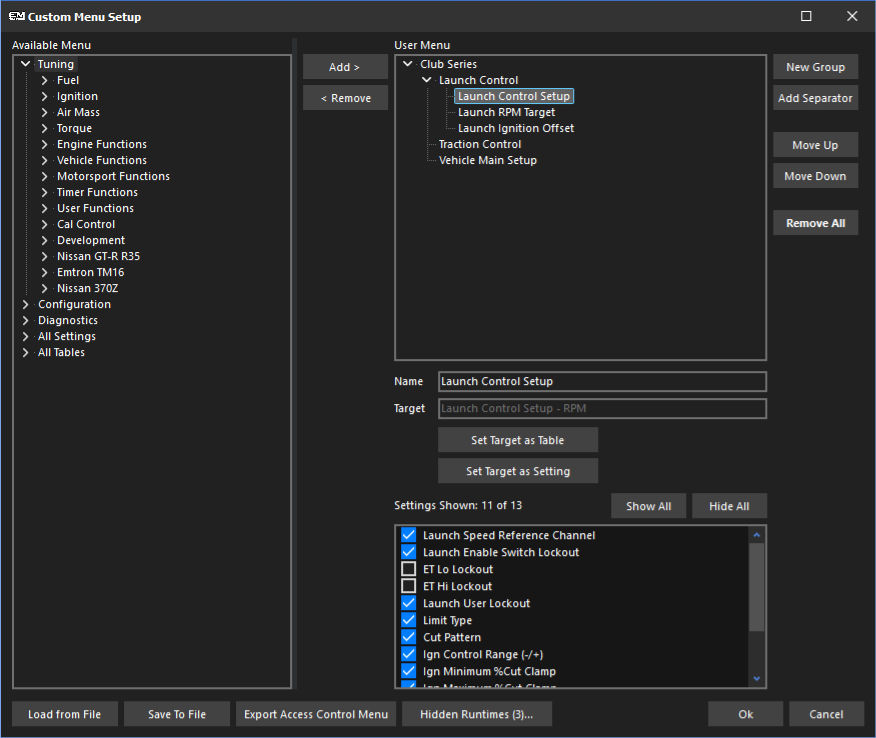
- Available Menu on the left lists everything that can go in the menu. Tuning, Configuration and Diagnostics are Emtune’s normal menus. All Settings and All Tables list every settings page and table.
- Add items by selecting them and clicking Add >, by double clicking them, or by dragging them across. Hold Ctrl or Shift to select several. Adding a submenu adds everything in it.
- Arrange items by dragging them within the User Menu, or with Move Up and Move Down. Click New Group to make a folder, and type a new name in the Name box to rename an item. Press Delete or click < Remove to take an item out.
- The top item’s name becomes the name of the menu tab, so name it after the group, for example “Club Series”.
- Settings Shown lists every setting on the selected settings page. Untick the settings users shouldn’t see. In the picture above, ET Lo Lockout and ET Hi Lockout are hidden from the Launch Control Setup page. Settings that a newer firmware adds to the page stay hidden until you tick them. This only works on settings pages. Setup pages with their own layout, such as Inputs and Outputs, always show everything.
Users can only open what’s in the menu. Anything that can be opened from a page in the menu is allowed too, such as a table opened from an Inputs page, so check what each page links to.
3. Hide live data (optional)
Click Hidden Runtimes… to choose runtimes that users can’t see. Type in Search to find a runtime, then double click it or press Enter to hide it. Use Remove or Remove All to show them again. The button shows how many runtimes are hidden.
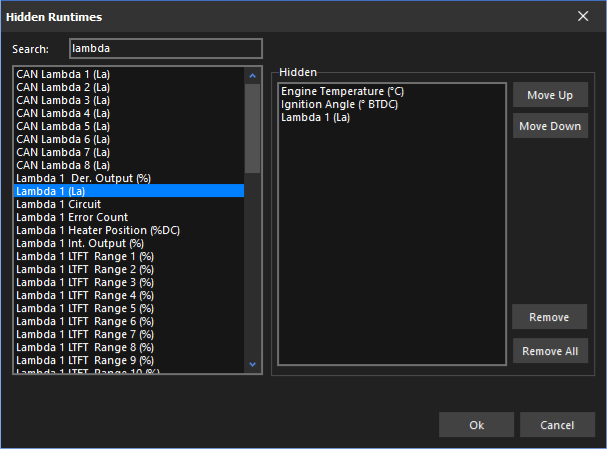
- Hidden runtimes show as
---in the dash panels, gauges and runtime pages, the same as an input that isn’t set up. PC logs and calculated channels only get a value of zero. - They’re hidden when the ECU is opened and in Live Data.
- Engine Speed, ECU Reset Counter and ECU Logging Status can’t be hidden, as Emtune needs them.
- Calculated channels can’t be hidden. A calculated channel made from a hidden runtime only reads zero.
4. Export the menu
Click Export Access Control Menu and save the file. It’s saved as an encrypted .emmx file, which is what you upload to EmNet.
Then click Cancel to close Custom Menu Setup without changing your own user menu, or Ok to keep it as your user menu as well. To change the group menu later, open the .emmx file with Load from File, then export it again.
5. Write a user manual
Write a document for your users, such as a PDF that explains the series rules and what they can adjust. Emtune offers to open it the first time a user opens an ECU in the group, and again whenever you upload a new one. Users can also open it from the Access Control dialog.
6. Create the group on EmNet
Log in to EmNet and click Access control in the menu. Fill in New group:
| Field | What to enter |
|---|---|
| Name | The name users see in Emtune, such as Club Series |
| Type | The kind of group. The type sets which files the group needs. |
| Identifier | A short name with no spaces, such as club-series |
| Description | Optional notes about the group |
| Approved firmware | Leave blank to allow any firmware, or enter a version such as 2.21.3. See Approved firmware. |
Click Create group.
7. Upload the files
In the group’s Files section, choose a Tag and a File, then click Upload file:
| Tag | File |
|---|---|
menu-file | The .emmx menu you exported |
instruction-manual | Your user manual |
Uploading a file with the same tag replaces the old one.
Until the group has every file its type needs, EmNet shows “Configuration error: missing …” on the group. While it’s unfinished, users can’t tune its ECUs at all, and the group owner gets a reminder in Emtune.
8. Add the ECU serial numbers
In Serials, choose the product, enter the ECU’s serial number and click Add serial. The serial number is on the Emtune welcome screen when the ECU is detected. You can add ECUs that you own on EmNet, or that the group’s owner owns.
9. Add admins and tuners (optional)
In People, enter the person’s EmNet email address, choose Admin or Tuner and click Add person. They need an EmNet account, but not the dealer role. Adding someone who’s already listed changes their role.
Admins and tuners without the dealer role don’t see Access control in the EmNet menu. They can go straight to emnet.emtronaustralia.com.au/access-control, or click Manage Groups… in Emtune’s Access Control dialog.
10. Lock each ECU
Connect to each ECU with an internet connection and click Open ECU. Emtune saves the group into the ECU and stores the calibration straight away, and tells you:
This ECU is now in the access control group “Club Series”. The calibration is stored automatically so the ECU keeps this.
Do this before the ECU leaves your hands. Opening it with Live Data doesn’t lock it. Until an ECU has been opened like this, a PC without an internet connection may give full access to it.
11. Check what users see
Open File > Access Control… and click Preview Restricted. Emtune shows the ECU the way other users get it, and the window title ends with [Restricted, Owner Preview]. You can still send files and update the firmware while previewing.
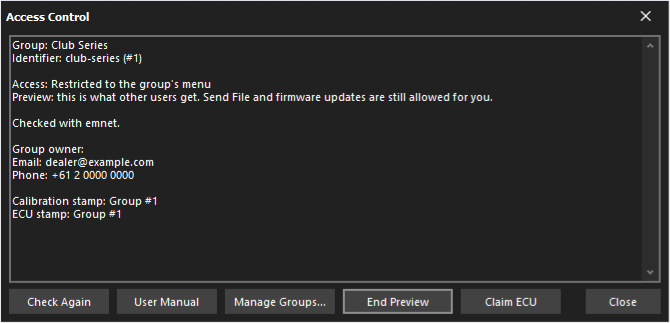
After uploading a new menu, click Check Again to load it straight away. The preview stays on. Click End Preview, or close the ECU, to get full access back.
Using an ECU in a group
Welcome screen
When an ECU in a group is detected, the ECU details on the welcome screen end with an Access Control section showing the group’s name. Emtune checks EmNet in the background, so this shows before the ECU is opened.
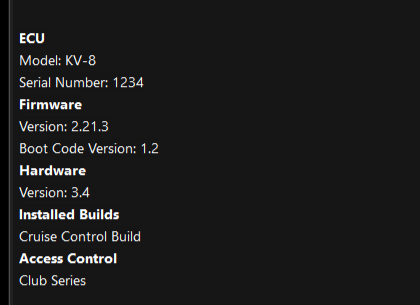
Opening the ECU
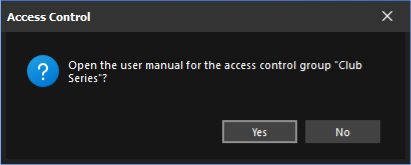
Click Open ECU as normal. The first time, Emtune offers to open the group’s user manual.
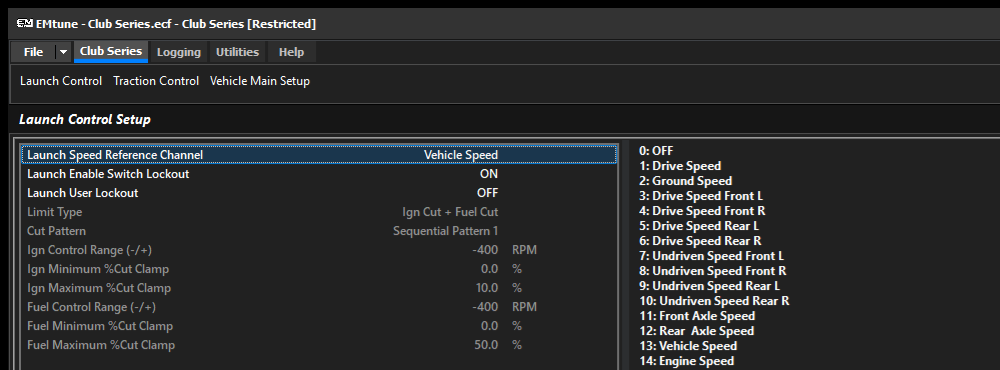
The window title shows the group and your access, such as Club Series [Restricted]. The Tuning, Configuration and Diagnostics tabs are replaced by a tab named after the group, which holds the group’s menu. Logging, Utilities and Help are still there.
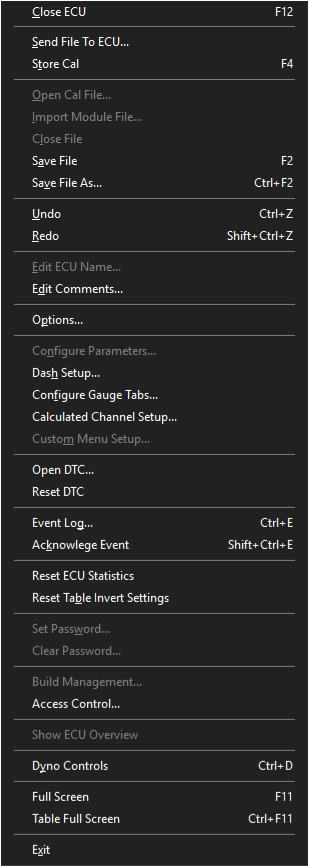
Shortcuts that would open something outside the group’s menu do nothing.
These are disabled in the File menu:
- Import Module File
- Edit ECU Name
- Configure Parameters
- Custom Menu Setup
- Set Password and Clear Password
- Build Management
- Show ECU Overview
Cal File Upgrade, Knock Studio, Remote Tuning and a table’s Axis Setup are disabled as well.
Everything else works as normal, including:
- Store Cal, Save File and Save File As
- Send File To ECU, see Sending calibrations
- Logging, ECU log download, live data and the scope
- Dash, gauge tab and calculated channel setup
- DTCs, the event log and dyno controls
- Table maths on the tables in the group’s menu
Hidden live data
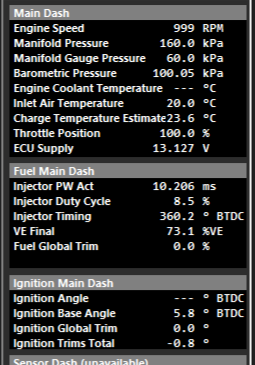
Runtimes the group hides show as ---, here Engine Coolant Temperature and Ignition Angle.
Live Data
Live Data checks the group too, and the window title shows your access. The runtimes the group hides show as ---. Live Data never changes anything in the ECU.
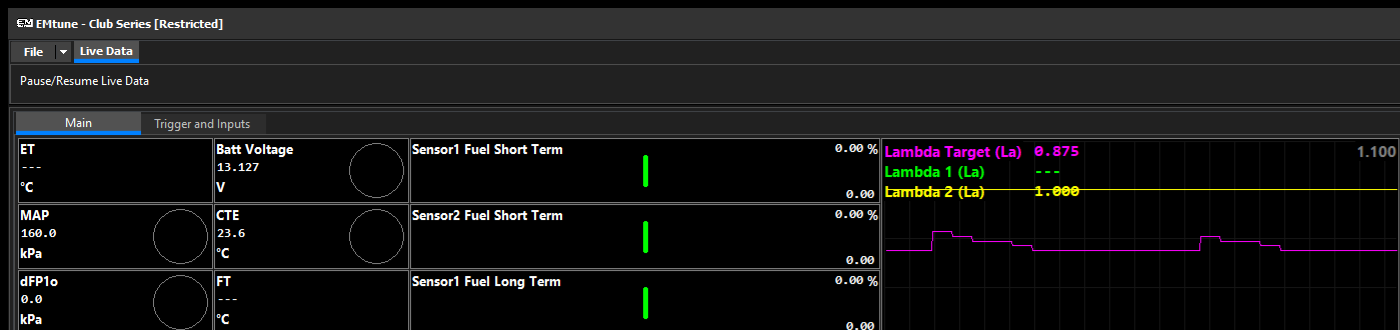
The Access Control dialog isn’t available in Live Data. Open the ECU to see it.
No Access
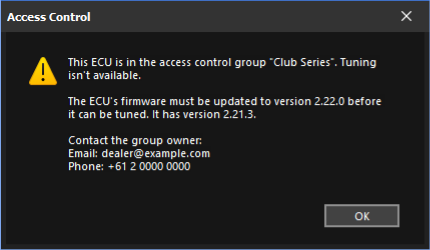
Sometimes a user can’t tune an ECU in a group at all. The window title then ends with [No Access], and only the Logging, Utilities and Help tabs show.

Emtune explains why, with the group owner’s contact details:
| Message | What to do |
|---|---|
| The ECU’s firmware must be updated to version … before it can be tuned. | Ask the group owner to update the firmware. See Approved firmware. |
| The group owner hasn’t finished setting up the access control group. Missing: … | The group owner needs to upload the missing files on EmNet. |
| The access control group isn’t saved on this PC. Connect to an ECU in the group while online to download it. | Connect to the internet and open the ECU again. |
| The access control group has no menu, or the access control menu could not be loaded. | The group owner needs to upload the menu again. |
Logging and live data still work, but the group’s hidden runtimes stay hidden. If this PC doesn’t have the group’s menu, all live data is hidden except Engine Speed, and Emtune says that tuning and live data aren’t available.
The Access Control dialog
Open File > Access Control… with an ECU or calibration open. It shows the group, your access, whether EmNet was reached, the group owner’s contact details and the group saved in the calibration and the ECU.
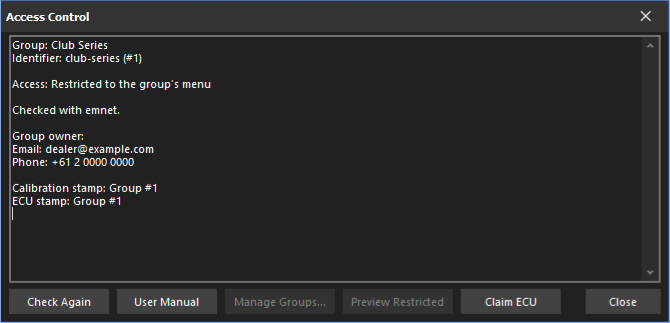
| Button | Who can use it | What it does |
|---|---|---|
| Check Again | Everyone, with an ECU open | Checks EmNet again, for example once the internet is back |
| User Manual | Everyone, when the group has a manual | Opens the group’s user manual |
| Manage Groups… | Owner, admins and tuners | Opens the group page on EmNet |
| Preview Restricted, End Preview | Owner, admins and tuners | Shows the ECU the way other users get it, or goes back to full access |
| Claim ECU | Dealers, with an ECU open | Takes ownership of the ECU on EmNet |
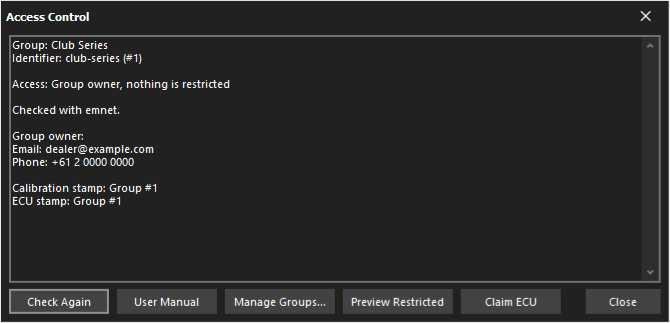
For the group owner, admins and tuners, the dialog shows the role, such as “Group owner, nothing is restricted”, and the window title ends with [Owner], [Admin] or [Tuner].
Calibration files
A calibration saved from an ECU in a group stays in that group. Opening it with Open Cal. File gives the same restricted menu, using the group this PC has saved. If this PC has never seen the group, the file opens with No Access.
Sending calibrations
Only calibrations saved from an ECU in the same group can be sent to an ECU in a group. Anything else is stopped before it’s sent, with the message:
Only calibrations saved from an ECU in this group can be sent to it. The file has not been sent.
The group owner, admins and tuners can send any calibration.
A calibration from a group can be sent to an ECU that isn’t in a group. Emtune clears the group from it the next time the ECU is opened with an internet connection.
Firmware updates
Only the group’s owner, admins and tuners can update the firmware of an ECU in a group. Everyone else gets:
Only the group’s owner, admins and tuners can update its firmware. The firmware has not been updated.
Approved firmware
A group can require one firmware version, set as Approved firmware on EmNet. When an ECU in the group has a different version:
- Users get No Access, and can’t send calibrations to it, until the firmware is updated to the approved version.
- The group owner, admins and tuners keep full access so they can update it, and Emtune reminds them that other users can’t tune it yet.
The version must match exactly, such as 2.21.3. Leave the field blank to allow any firmware.
Without an internet connection
Emtune checks EmNet each time an ECU is detected and opened. When EmNet can’t be reached, for example at a track:
- A locked ECU stays locked. Emtune uses the group saved in the ECU, and tells the user that the check with EmNet didn’t finish.
- The PC must have seen the group before. Emtune keeps a copy of each group’s menu once it has connected to an ECU in that group online. A PC that never has gets No Access, with all live data hidden except Engine Speed.
- Full access works offline too, on a PC registered to the group owner, an admin or a tuner, once it has checked the group online.
Before going to a track, connect each PC to its ECU once with an internet connection.
Changing a group
- New menu or manual: upload it on EmNet with the same tag. Users get it the next time they open the ECU with an internet connection, or straight away with Check Again. A new manual is offered to users again.
- Removing an ECU: remove its serial number on EmNet. The next time the ECU is opened with an internet connection, Emtune clears the group from it and stores the calibration, and the ECU works as normal.
- Deleting the group: only the group owner can do this. Its ECUs work as normal again the next time each one is opened with an internet connection.
Troubleshooting
I’m the group owner but Emtune shows [Restricted]. Check that Emtune on this PC is registered to your EmNet account, and that Preview Restricted isn’t on. Then click Check Again with an internet connection.
The welcome screen doesn’t show the Access Control section. The ECU isn’t in a group on EmNet, or Emtune couldn’t reach EmNet and the ECU hasn’t been locked yet. Check the serial number on the group’s page.
A runtime shows ---.
The group hides it. Contact the group owner if you need it.
The claim says a transfer is already waiting. The current owner has been emailed a link to approve it. They have 7 days to approve the transfer.
Emtune says the check with EmNet did not finish. The PC couldn’t reach EmNet. The group saved in the ECU, or on this PC, is used until it can.