Ethernet
Ethernet Wiring
For wiring information click here: Ethernet Wiring
IP Configuration
The Emtune software will communicate to the ECU over a static IP address.
Set your IP and subnet to the following on the Ethernet port you will be using on your PC.
IP: 192.168.1.50
Subnet: 255.255.255.0
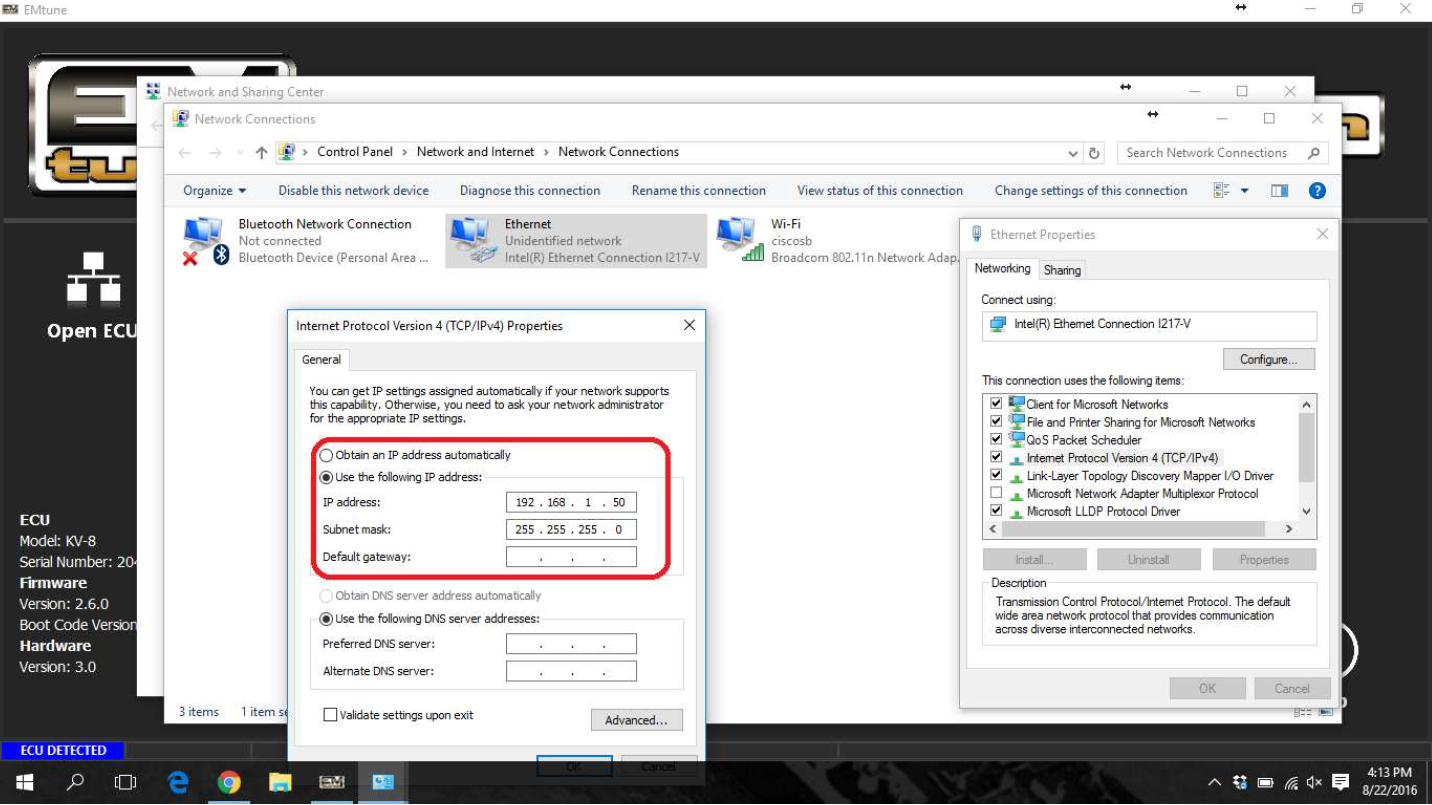
With successful connection, the Emtune Welcome screen will display “ECU DETECTED” in blue in the bottom left corner as can be observed in the background in the above example.
Auto IP Config
Emtune 1.20.0 and onwards includes a wizard to help configure the ethernet connection (Bottom right of the splash screen)
The wizard may fail to configure the adapter if a previously used adapter was set to the same IP address. Windows can be very finicky about this.
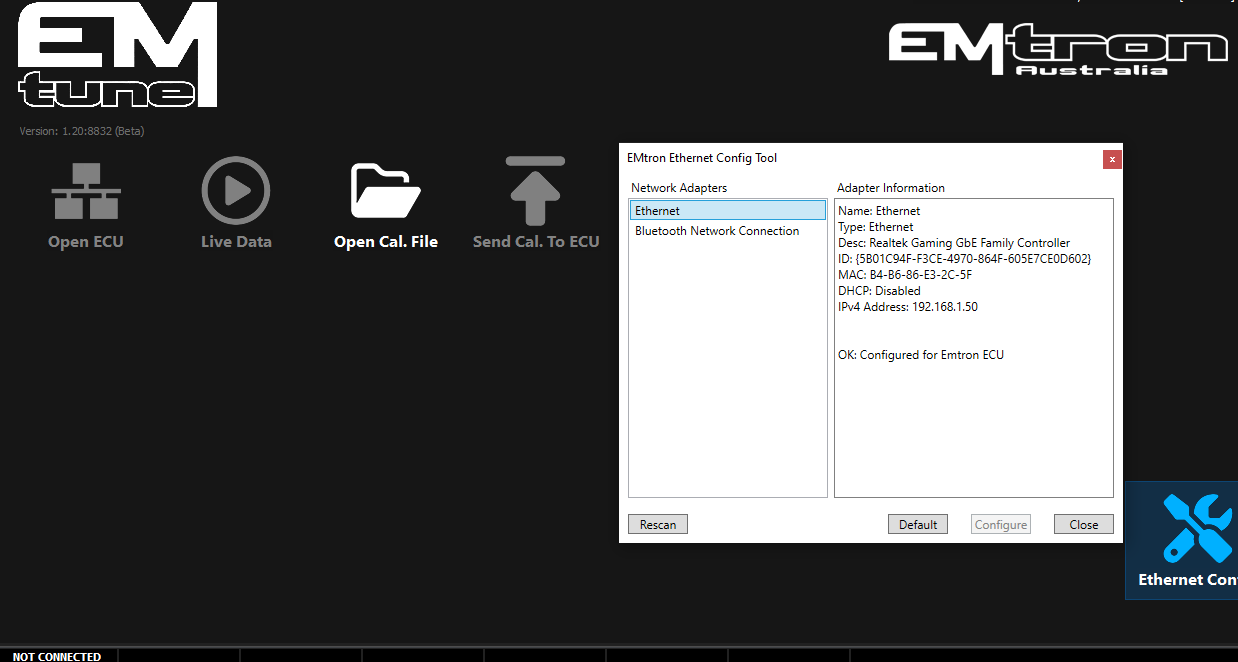
This will be visible when an ECU is no connected / detected.
When the ECU is connected & the IP address correctly configure, the software will acknowledge this in the bottom left corner.
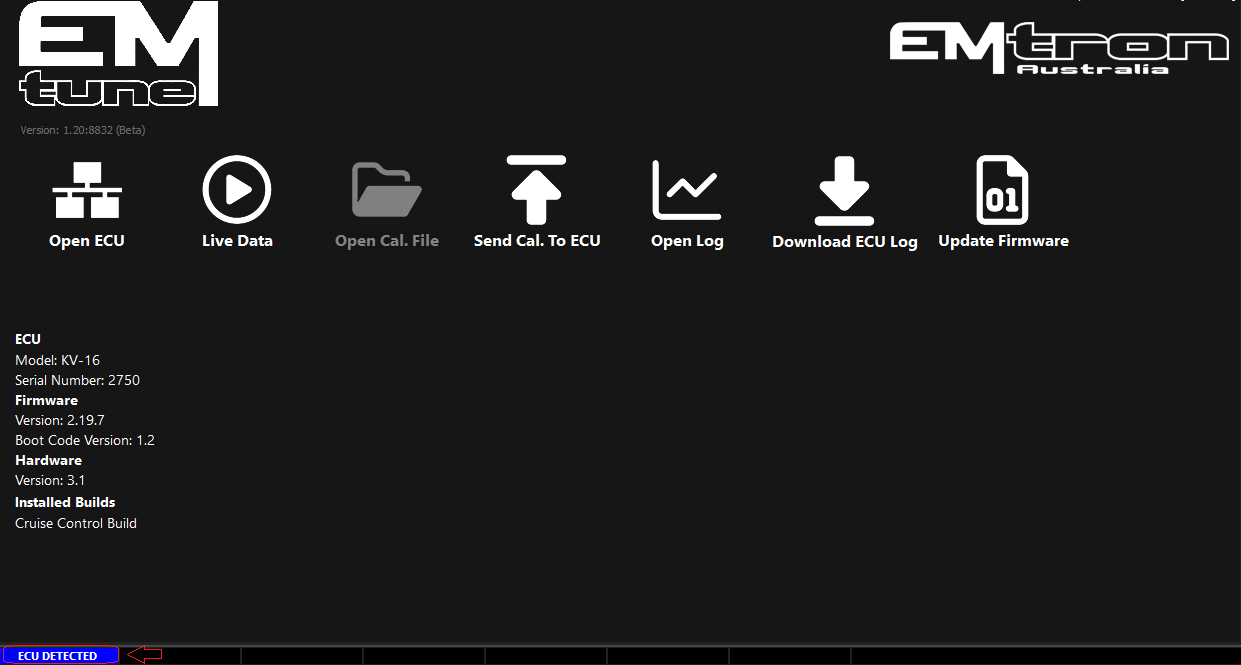
The process to manually configure windows 11+ is as follows:
Manual IP Config
Info on configuring the IP address for different windows version can be found here:
Troubleshooting
When a correctly configured Ethernet port is in use together with a known good communication cable and you remain unable to establish a connection.
Power supply to the ECU must be verified. That is, the next step is to determine if the ECU is powering up.
Without voltage to the ECU supply pin.
The ECU will fail to power up thereby making communication impossible.
For the KV Series ECU’s this is pin D1
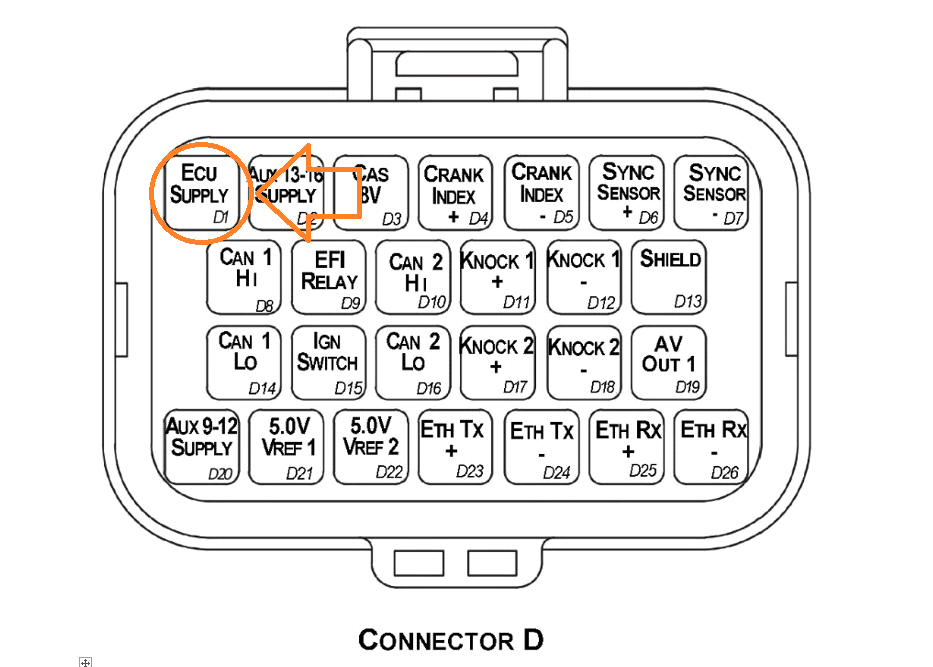
For the SL series ECU’s, this is pin B1
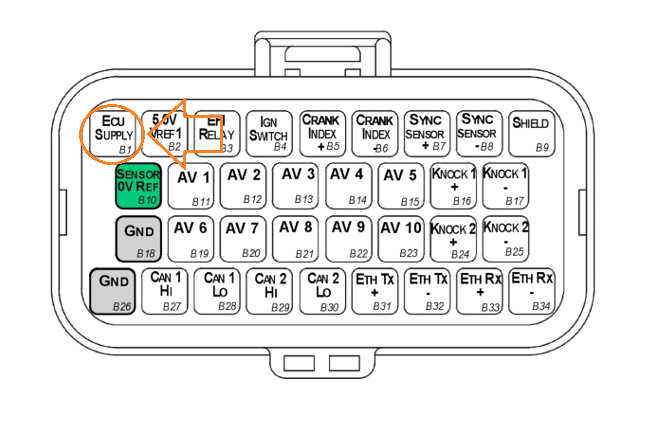
If 12V is not present at D1/B1 with ignition ON, you will need to determine the power supply fault.