Calculated Channels
Calculated Channel Setup
Calculated Channels are available for users to set up inside Emtune
** These channels are only available “software side” for use in the logger, live dash channels, and programmable parameter channels (Set Cell to Parameter Value), and cannot be used as permanent ECU channels
Calculated Channel Examples
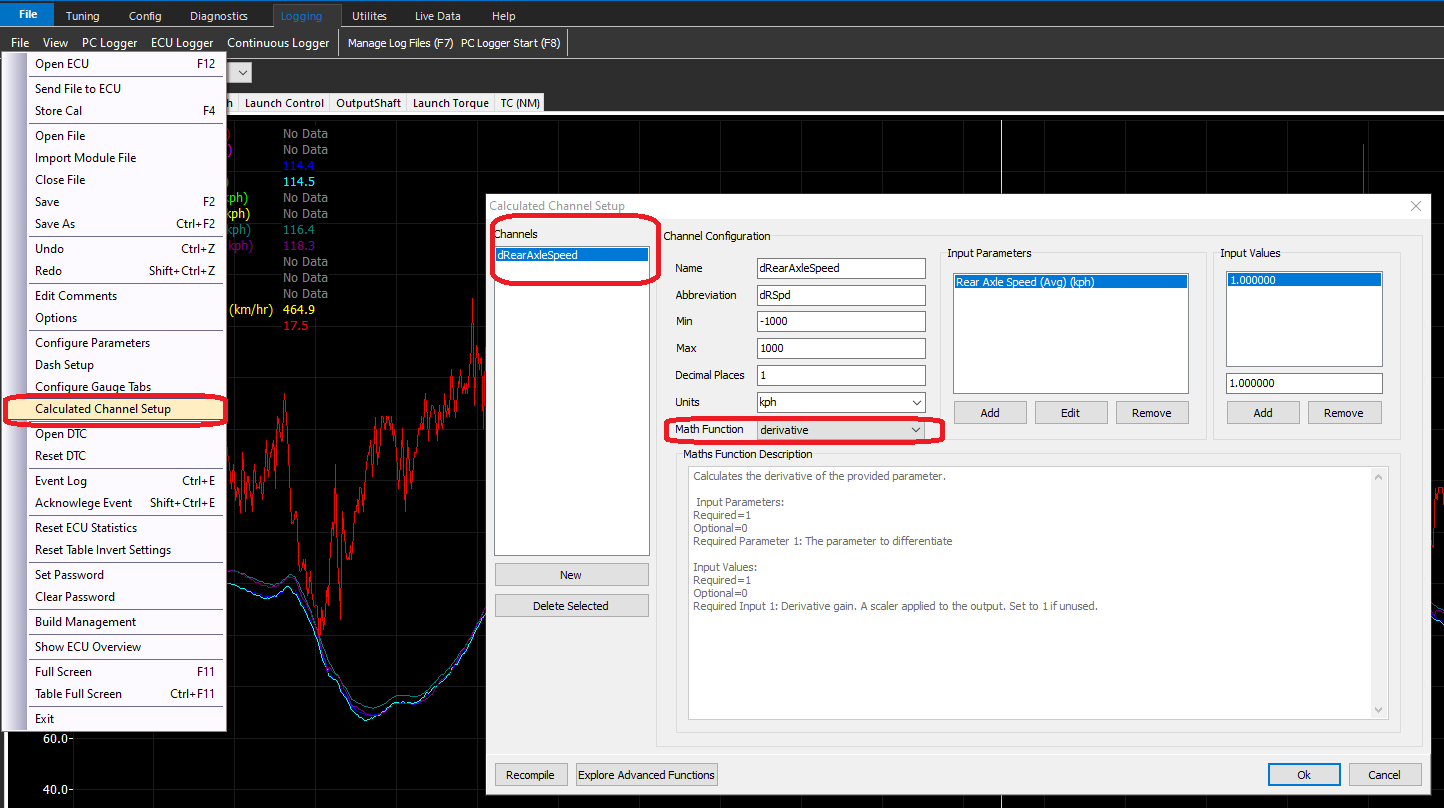
Calculated Channels are accessed via the File Menu.
A “new” channel can be created, where the user can define name, abbreviation, min/max, units, etc.
There are pre-defined Math Functions that can be selected, in which the Maths Function Description will dictate how it can be used.
Derivative Speed Example
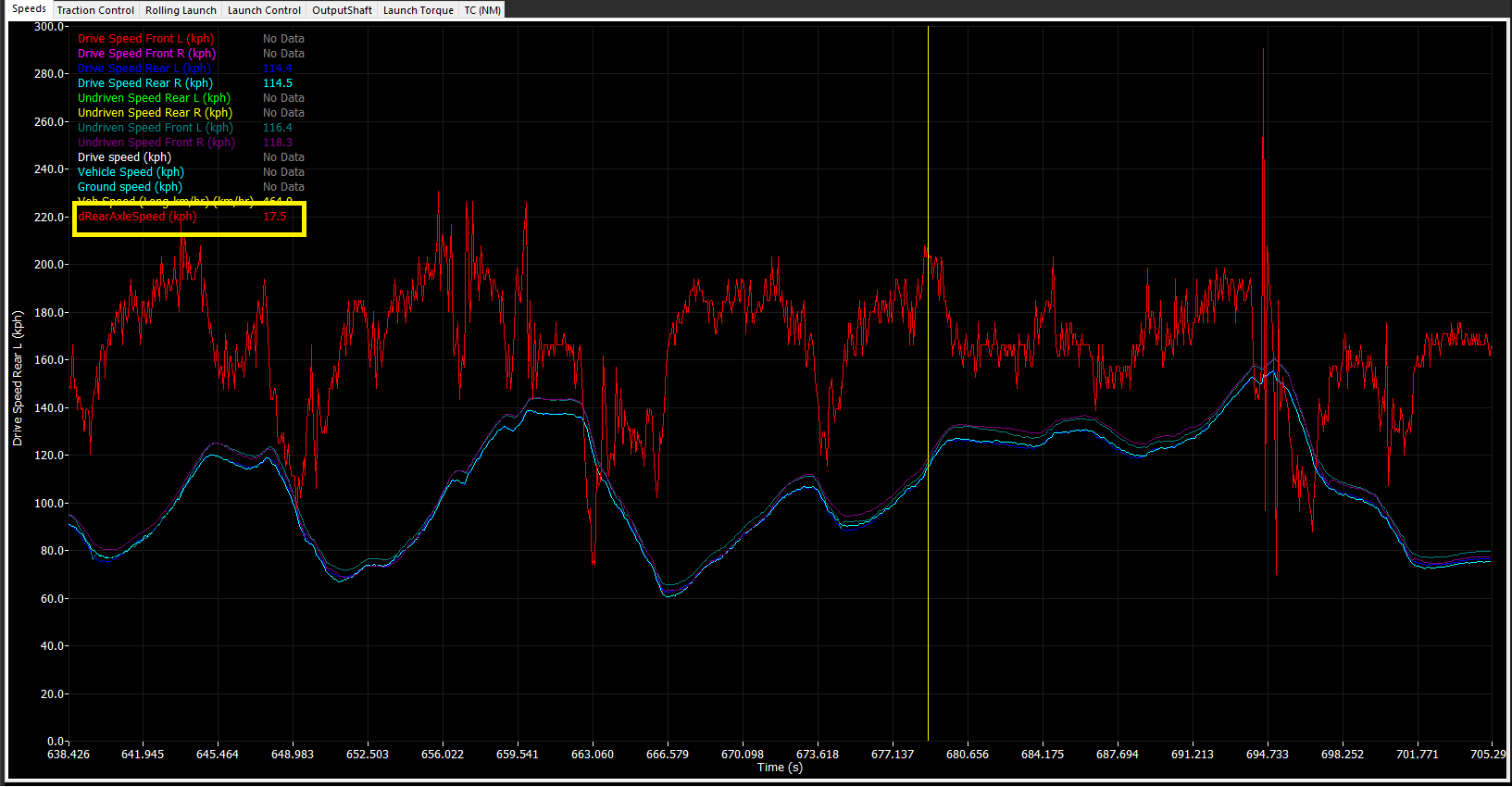
The example above is showing how the derivative math function can be used to create a channel for the Rear Axle Speed channel.
Once created, the channel can be selected in the logger, live dash, or programmed as a Set Cell Value (Q).
Simple Channel Re-naming
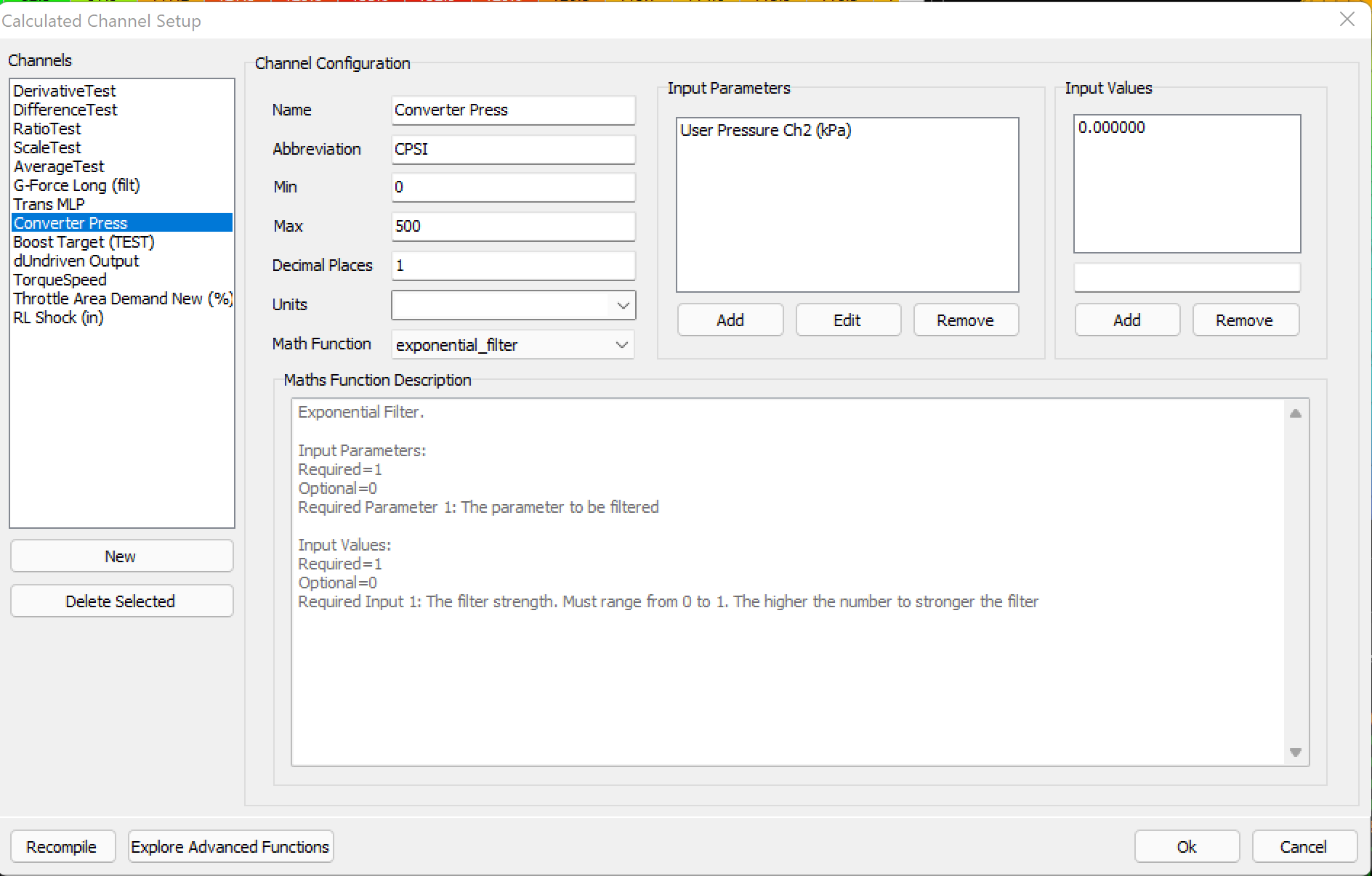
The example above is showing how the User Pressure 2 channel name is being converted to a name that can be easily displayed.
The Exponential Filter math function is being used (a math channel MUST be selected), however the filter strength being set to 0.000 will output a 1:1 value in the logger exactly as the User Pressure 2 channel is being reported
** A different math function can be used, such as “sum”, with no actual sum (0.000).
Channel Re-naming with math
In some cases, channels may need re-naming, but also an offset applied to them. Most commonly if a sensor needs a simple way to “zero” it’s value. Instead of re-scaling the sensor in the sensor input every single time, this can be done in the calculated channels.
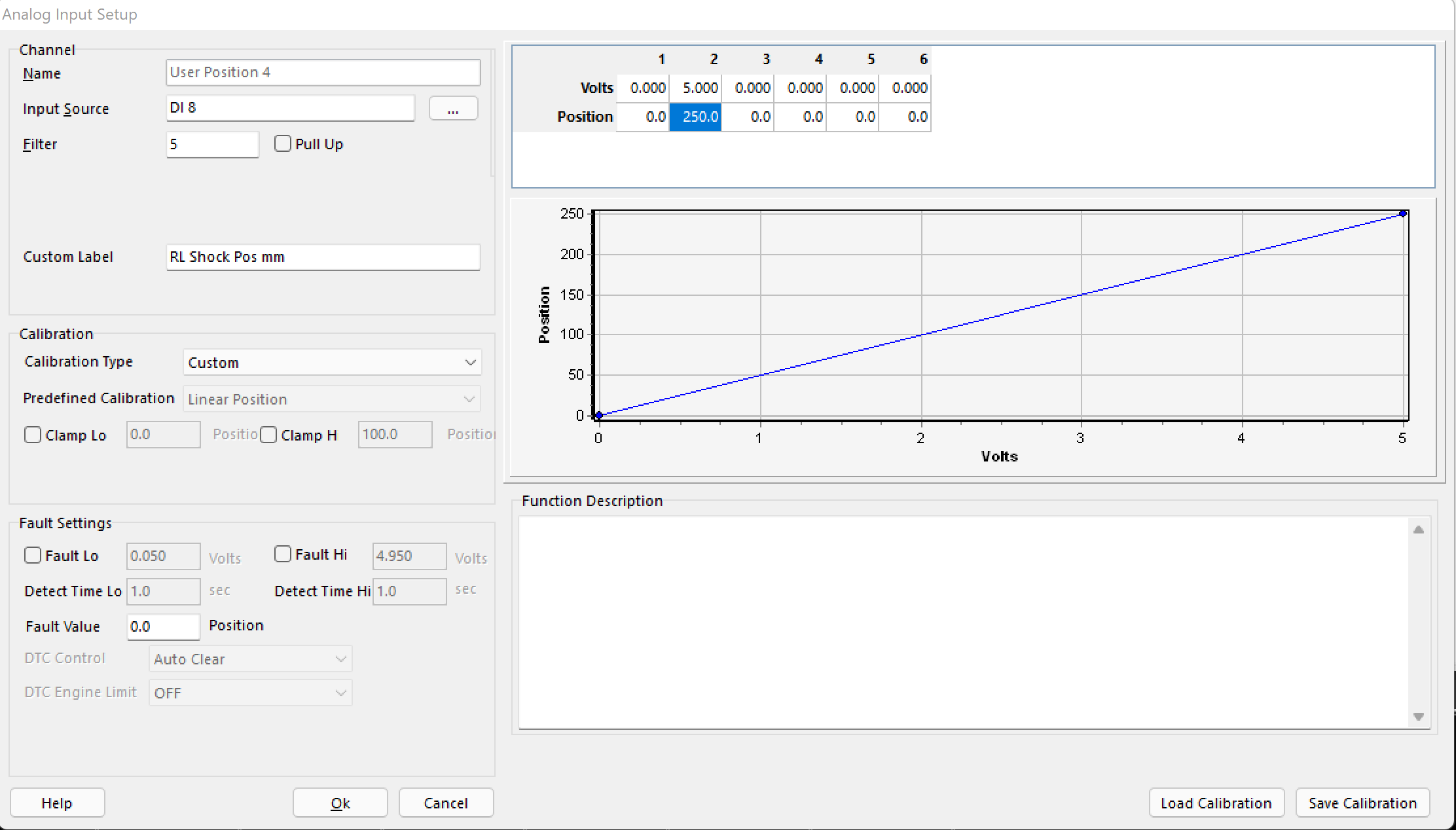
A User Position is set up here for a rear shock sensor.
The voltage range represents it’s complete range (0-250mm)
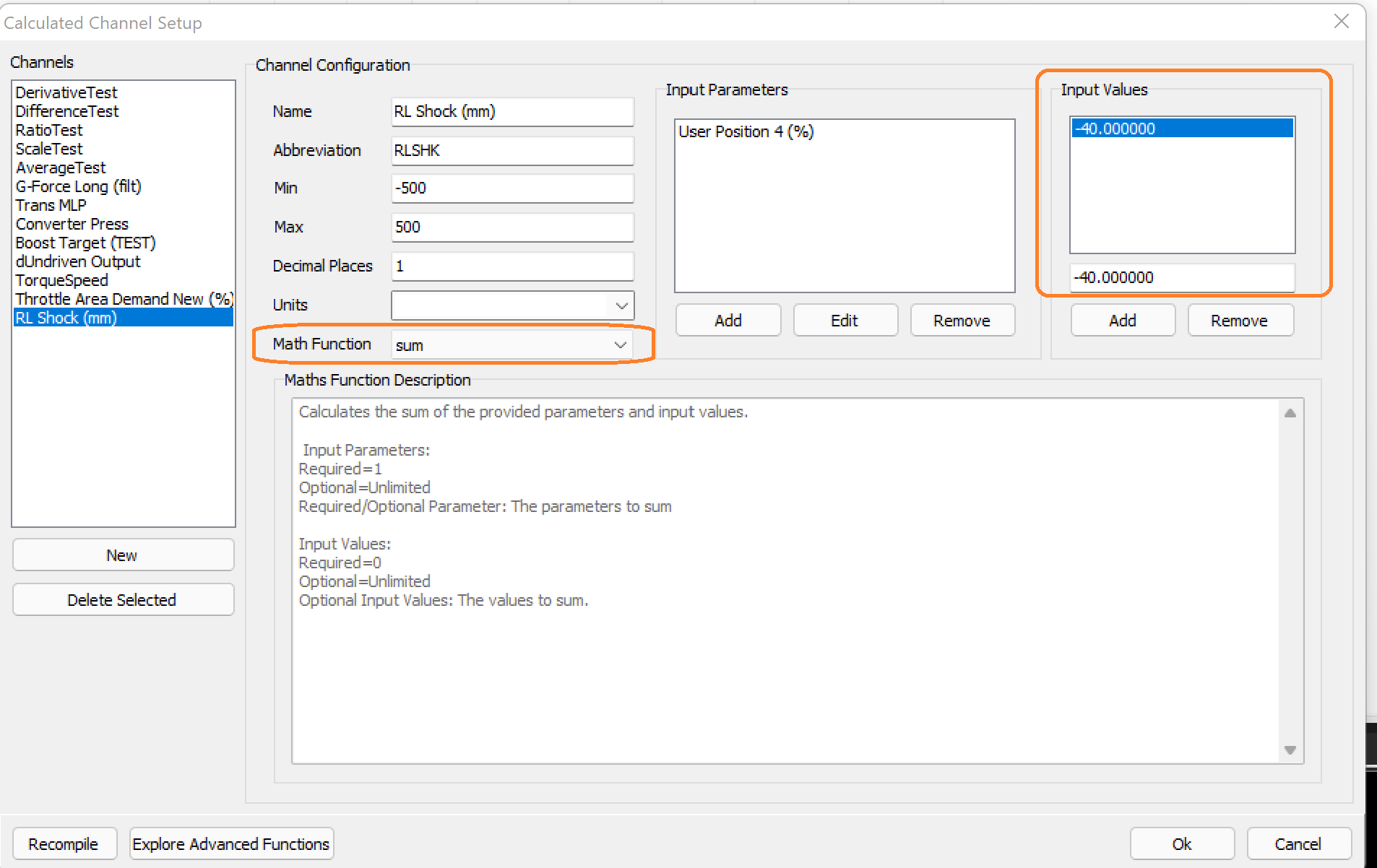
The calculated channel is created using the “sum” Math Function.
The Input variable of -40, zeros the value in the data logger/live parameters.
The value needed can be derived easily by looking at the current User Position channel, and then quickly entered to adjust the value, without re-scaling the position input.
Advanced Functions
Advanced Math Functions can be added by the user themselves.
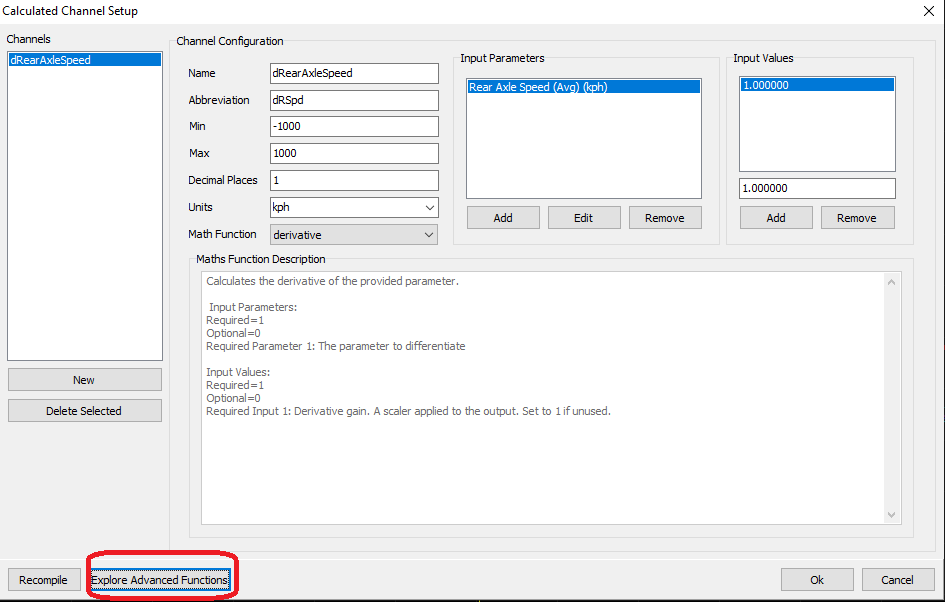
Clicking Explore Advanced Functions allows the user to import new .dll files as new Math Functions
Creating New Functions
To create a new function, firstly - Download the c compiler: https://github.com/llvm/llvm-project/releases/download/llvmorg-10.0.0/LLVM-10.0.0-win32.exe
** When installing, ensure you check the box saying ‘add to path’ or else Emtune will not be able to find the compiler.
To add a new function, you need to create a source file for the function. The file extension must be .c and not contain any spaces.
There is an example file in the source directory for the users to use as a template:
Example: testfunction.c
The new file should look like this (don’t worry too much about the icon):

Open the file in a text editor compatible with .c files such as - Notepad++ https://notepad-plus-plus.org/downloads/
To get started you can paste the following into your new math function as a starting point:
** The file in the source folder called math_function.h contains more technical information about how the math functions work.
This is the source for the derivative function shipped with Emtune.
Once pasted in, at the very least, the function name must be renamed.
Changed the line:
char *name(void) { return “derivative”; }
to
char *name(void) { return “testfunction”; }
This is the name that will appear in Emtune in the dropdown list.
Save the file.
Back in emtune, click the button ‘Recompile’ which is left of the highlighted button in the first screen shot.
The function will now be available to select from the dropdown list.
Math Expressions
As a simpler alternative to advanced functions, you can also specify a calculated channel as a math expression.
See Math Expressions for a detailed explanation.