Comparing Cal Files
TMtune can compare the open calibration with a cal file and show every setting, table and script that differs. Values can then be copied from the cal file into the open calibration, a setting, a table or a whole page at a time.
The open calibration can be a cal file or the TCM itself, so a compare can answer questions like:
- What has changed on the car since the base cal file was loaded?
- What’s different between this tune and last week’s?
- Which settings from an older cal file should come across to a new one?
Opening a Compare
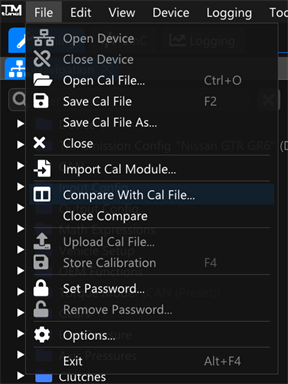
With a cal file or the TCM open, choose File > Compare With Cal File... and pick the cal file to compare with. If the cal file is password protected, TMtune asks for its password first.
The name of the cal file being compared with is shown in purple in the status bar. Hover over it to see where the file is and which firmware it was saved from, or click it to open the Differences window.
The compare stays open while you work, and while you open other cal files. It closes with File > Close Compare, or when the calibration is closed (File > Close All).
Tip
To compare the TCM with a cal file, open the TCM first, then choose File > Compare With Cal File....
Different Firmware
The cal file doesn’t have to be from the same firmware as the open calibration. It’s read as it would be if it were uploaded to the TCM:
- Values that this firmware doesn’t have are listed when the compare opens, as they are when a cal file is opened.
- Values outside their limits in this firmware are limited, and listed.
- Settings that are new in this firmware have no value in an older cal file. They show as
-and are listed under Not in the Compare File in the Differences window, rather than as differences.
If a cal file from different firmware is then opened, the compare is read again to suit it.
What’s Compared
Values are compared as the pages show them. A value is only different if it would show differently on its page, so two values that only differ past the decimal places shown are the same.
- Tables are compared by their setup (the inputs on each axis and their sizes), then their breakpoints and cells. Cells are compared by position, so a table with a column added still compares cell by cell where both tables have that cell.
- Scripts are compared slot by slot: a slot differs when its script or its settings do.
- Not compared: values that belong to the TCM rather than the calibration (serial number, firmware versions, licensed builds and other read-only values), the password and the cal file name. Cal file notes are compared.
Navigation
Each page and folder that differs has a purple dot at the right of the navigation tree.
Click the not-equal button beside the filter box (Show differences only) to show only the pages that differ. It works with the filter, so typing “clutch” with it on shows the clutch pages that differ.
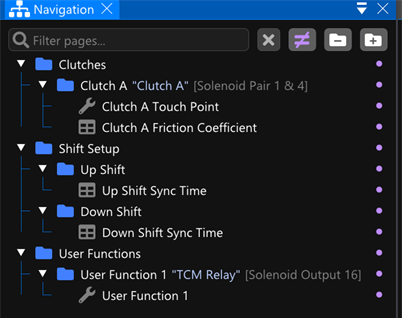
A page only shows a dot for the settings it shows. Settings hidden by the calibration’s setup (for example the pages for a clutch the transmission doesn’t have) don’t mark their page, but they’re still listed under On Hidden Rows in the Differences window.
Settings Pages
A settings page has a Compare column beside the units. It shows the cal file’s value, in purple, for each setting that differs, or - where the cal file has no value for it.
Right-click a setting and choose Copy from Compare to take the cal file’s value.

Tables
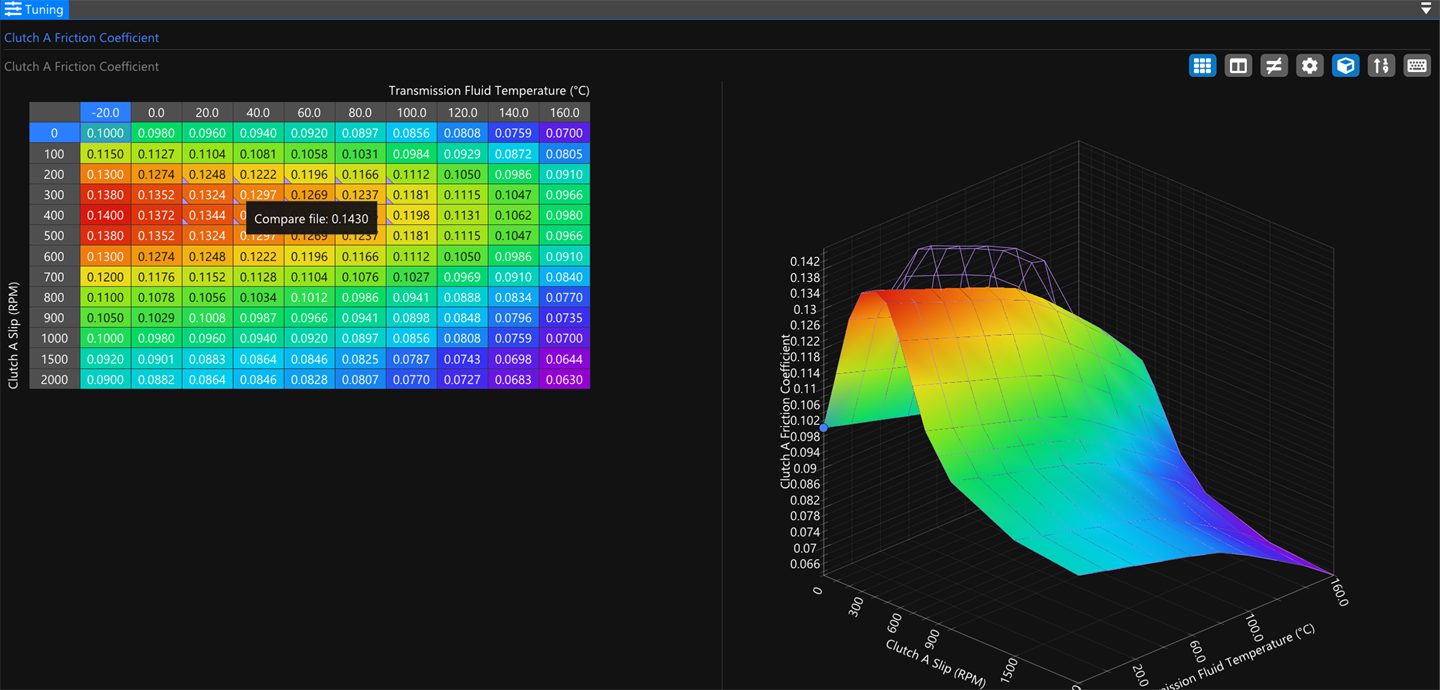
A cell or breakpoint that differs has a small purple triangle in its bottom left corner. Hover over it to see the cal file’s value. A value changed since the cal was opened keeps its own mark in the top right corner.
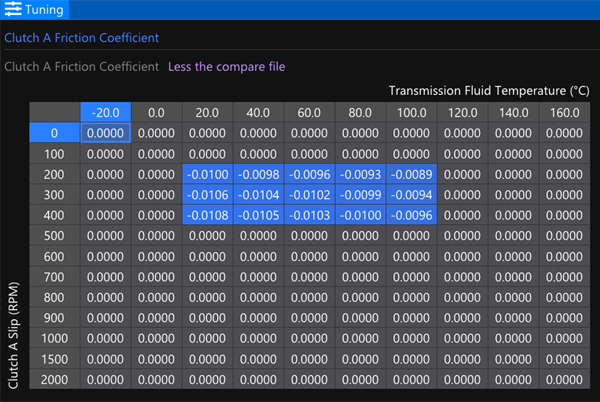
When a compare is open, three buttons at the top right of the table choose what the grid shows:
- Values: the calibration’s table, with its differences marked.
- Compare: the cal file’s table, on its own breakpoints. It can’t be changed.
- Difference: each cell of the calibration less the cal file’s: blue where the calibration’s value is lower, red where it’s higher, grey where they’re the same. Only available when both tables are set up alike.
With the 3D surface showing values, the cal file’s table is drawn over it as a purple wireframe.
When the table’s setup differs, the cal file’s sizes and axis inputs are shown above the grid.
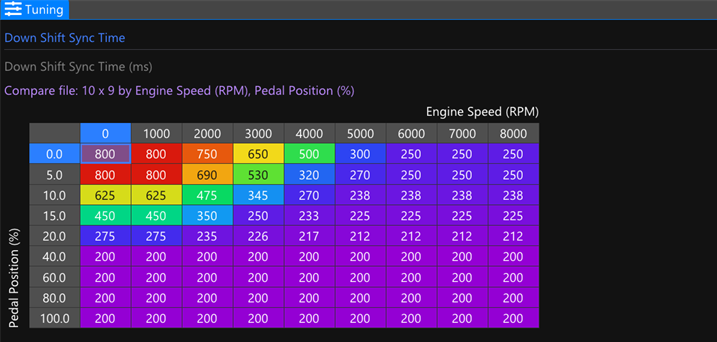
Right-click the grid for:
Show Values,Show CompareandShow Difference, as the buttons.Copy Selection from Compare: the selected cells take the cal file’s values, where the cal file’s table has those cells.Copy Table from Compare: the whole table is replaced by the cal file’s, setup, breakpoints and all, as importing a table does.
CAN Streams, User Functions and Scripts
CAN streams mark each field of a parameter that differs, and the stream’s label, DLC and Multiplexed ID. A frame’s tab is marked when a parameter on it differs. Hover over a marked field to see the cal file’s value, or where the cal file has that parameter if it’s on another stream or frame. Right-click a parameter and choose Copy Parameter from Compare to take the cal file’s.
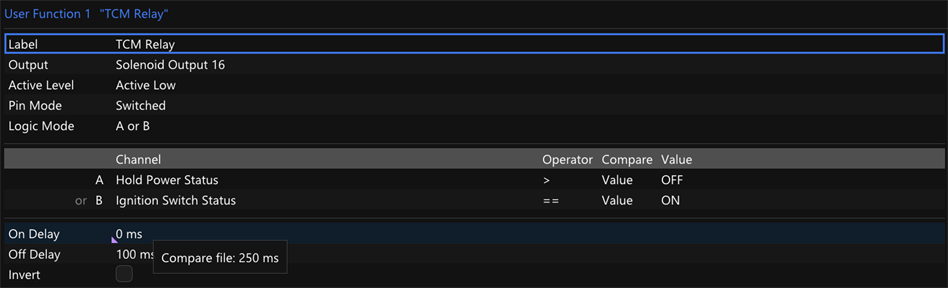
User functions mark each field that differs, with the cal file’s value when hovered. Copy from Compare on a row’s right-click menu copies only that field.
Script Management marks a slot whose script differs. Hover over its number to see the cal file’s script. Scripts the cal file has after the calibration’s last one are listed in purple. Right-click a slot and choose Copy Slot from Compare to put the cal file’s script, with its settings, in that slot. As with any script change, with the TCM open it isn’t sent until Write is clicked.
The Differences Window
View > Differences, or clicking the cal file’s name in the status bar, opens a list of every difference, under the page it’s on, with the calibration’s value and the cal file’s. A table lists which of its setup, breakpoints and cells differ.
Click a difference to go to its page, with the setting or table cell selected. Type in the filter box to find a page, setting or value.
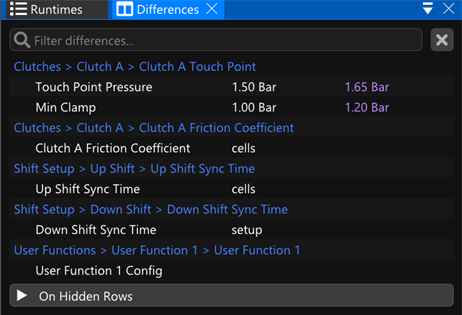
Two groups follow the list, closed at first:
- Not in the Compare File: settings the cal file has no value for, usually because it’s from older firmware.
- On Hidden Rows: differences in settings the calibration’s setup hides. These can’t be gone to, as their page doesn’t show them.
Copying from the Compare
Copying always goes from the cal file into the open calibration. The cal file itself is never changed.
- A setting, cell, table or field: from its right-click menu, as above.
- A page or folder: right-click it in the navigation tree and choose
Copy Page from CompareorCopy Folder from Compare. Every setting that differs on the page, or on every page in the folder, is copied.
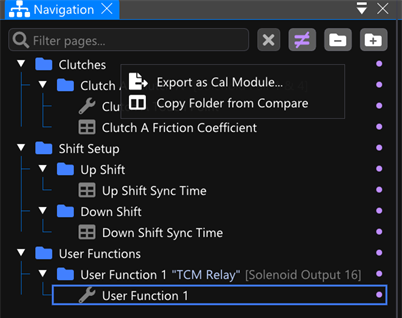
A page or folder copy leaves the same settings as importing a cal module does: the input sources and output assignments, which belong to the car’s wiring, and the script slots. If any of them differ, TMtune lists them afterwards so they can be copied one at a time if wanted.
A copy is a change like any other: it’s marked as changed, and Edit > Undo (Ctrl+Z) on its page undoes it. A folder copy is undone a page at a time. Script copies can’t be undone.
Info
With the TCM open, copied values are sent to the TCM straight away, as any change is. Store Calibration (F4) keeps them once the TCM is powered off. Copying a page or folder while the engine is running or the car is moving asks first.
Tip
To take everything from a cal file, open it instead. With the TCM open, File > Upload Cal File... sends a whole cal file to the TCM.